

Previewing Segments
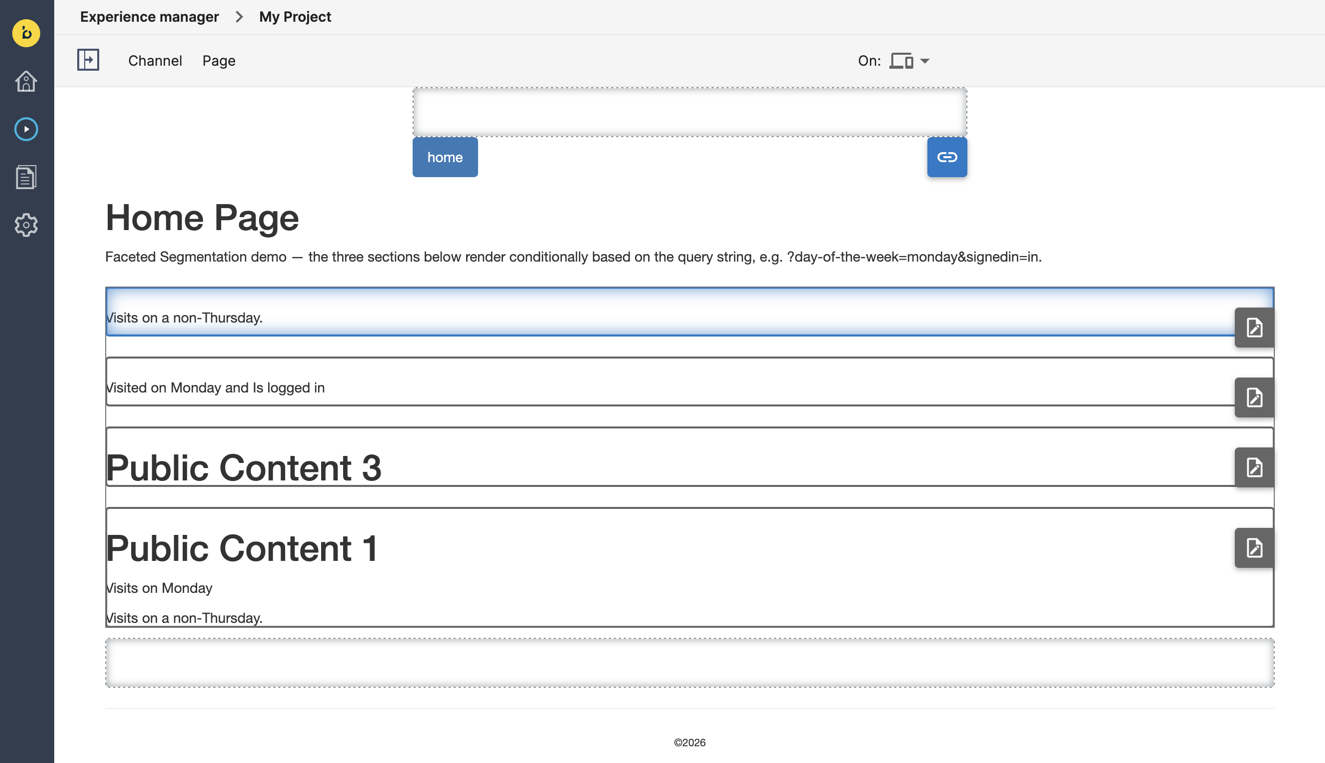
On the live site, the site works out each visitor's facet values for itself. In preview there's no real visitor, so you tell each component which visitor to pretend to be. The component then shows the sections that visitor would see.
This applies to every preview of the channel, not only the Experience manager. It applies even when your site gets facet values from a login or another service: in preview, those are never used.
Set the visitor
- Open the page in the Experience manager.
- Select the Faceted Segmentation component.
- In its settings, fill in Preview mode query parameters. See The format below.
- Save. The preview reloads and shows the sections that match.
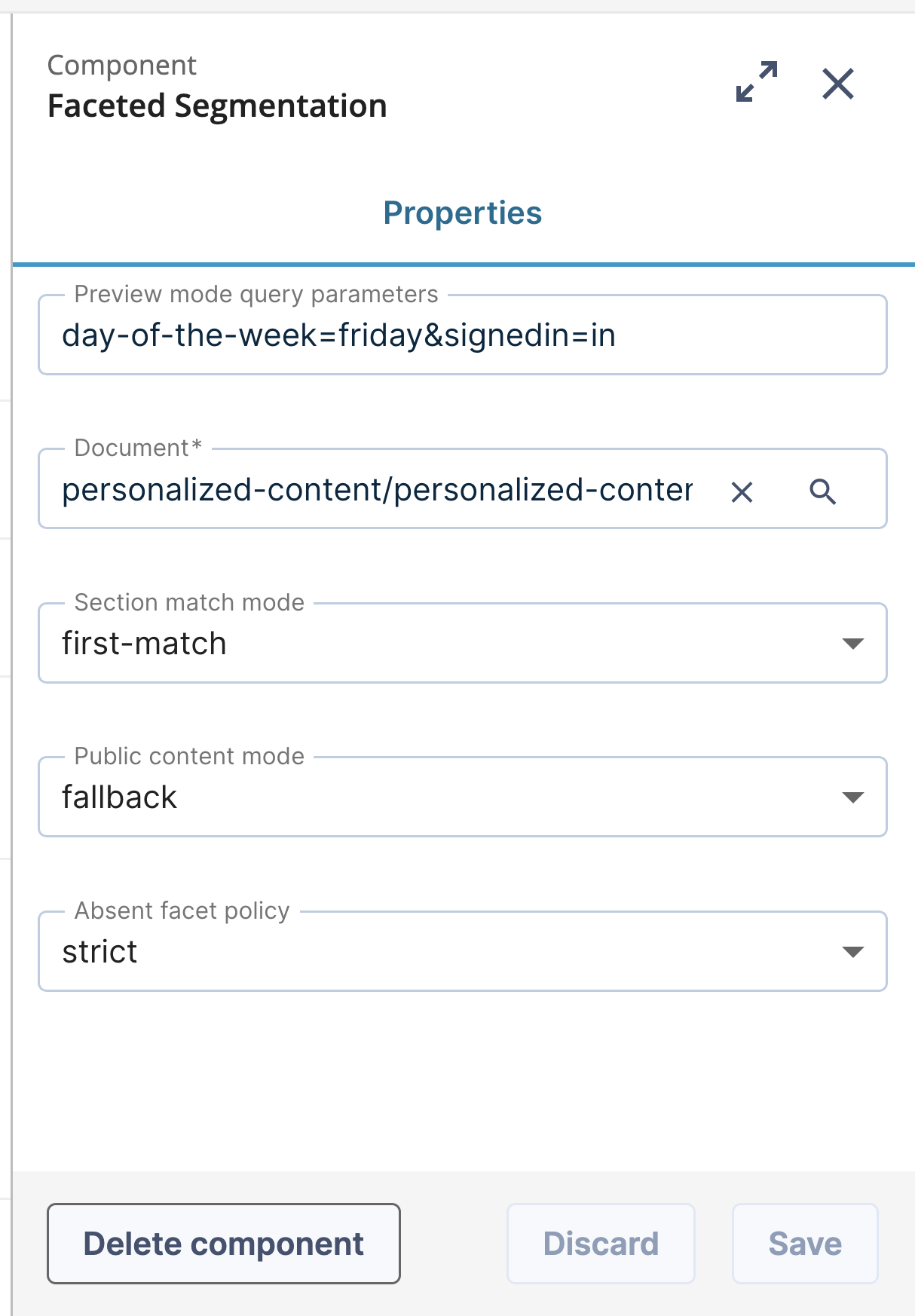
The setting belongs to that one component. Every Faceted Segmentation component on the page has its own, so two components on the same page can preview two different visitors. To see the whole page as one visitor, give each component the same values.
The setting is only used in preview. It never changes what live visitors see.
The format
The value is a list of facets and values, joined with &:
day-of-the-week=monday&signedin=in
This previews a signed-in visitor on a Monday.
| Part | What to write | Example |
|---|---|---|
Before = |
The facet's value list name, as it appears in its URL. | day-of-the-week |
After = |
The value's key. The builder shows it in grey next to each value. | monday |
| Several values | Separate them with commas. | size=S,M |
| Several facets | Join them with &. |
day-of-the-week=monday&size=S |
Keys aren't case-sensitive, so Monday works as well as monday.
The facet name is the value list's URL name, not its display name. If you can open the value list, Document › Rename shows both. Value lists are often visible only to administrators. If you can't see them, ask an administrator or your developers for the names.
A facet or value the site doesn't recognise is skipped without a warning. If the preview doesn't show what you expect, check the spelling first.
Examples
These use three example facets: Day of the Week (day-of-the-week), Signed In (signedin) and Size
(size).
| To preview | Write |
|---|---|
| A signed-in visitor on a Monday | day-of-the-week=monday&signedin=in |
| A signed-out visitor on a Saturday | day-of-the-week=saturday&signedin=out |
| A small visitor on a Tuesday | day-of-the-week=tuesday&size=S |
| A visitor with no size | Leave size out. |
| A visitor with no values at all | Leave the field empty. |
How rules treat a facet you leave out depends on the Evaluation setting the builder shows. See Visitors with no value.
Giving a facet several values, like size=S,M, previews a visitor who has all of them. That's
useful for facets where a visitor really can have several values, such as the products they own.
A condition matches when any of its values is among the visitor's.
Things that don't work in preview
- Adding query parameters to the preview URL. In preview, facet values come only from the component setting. Query parameters in the URL are ignored.
- Your own login. Being signed in to the CMS doesn't make you a signed-in visitor. Set
signedin=in, or your site's own facet for it. - Leaving the default. A new component starts with the demo's values,
day-of-the-week=monday&signedin=in. If your site has no facets with those names, they're skipped, and the preview shows a visitor with no values. Replace them with your own.