

Building a Rule
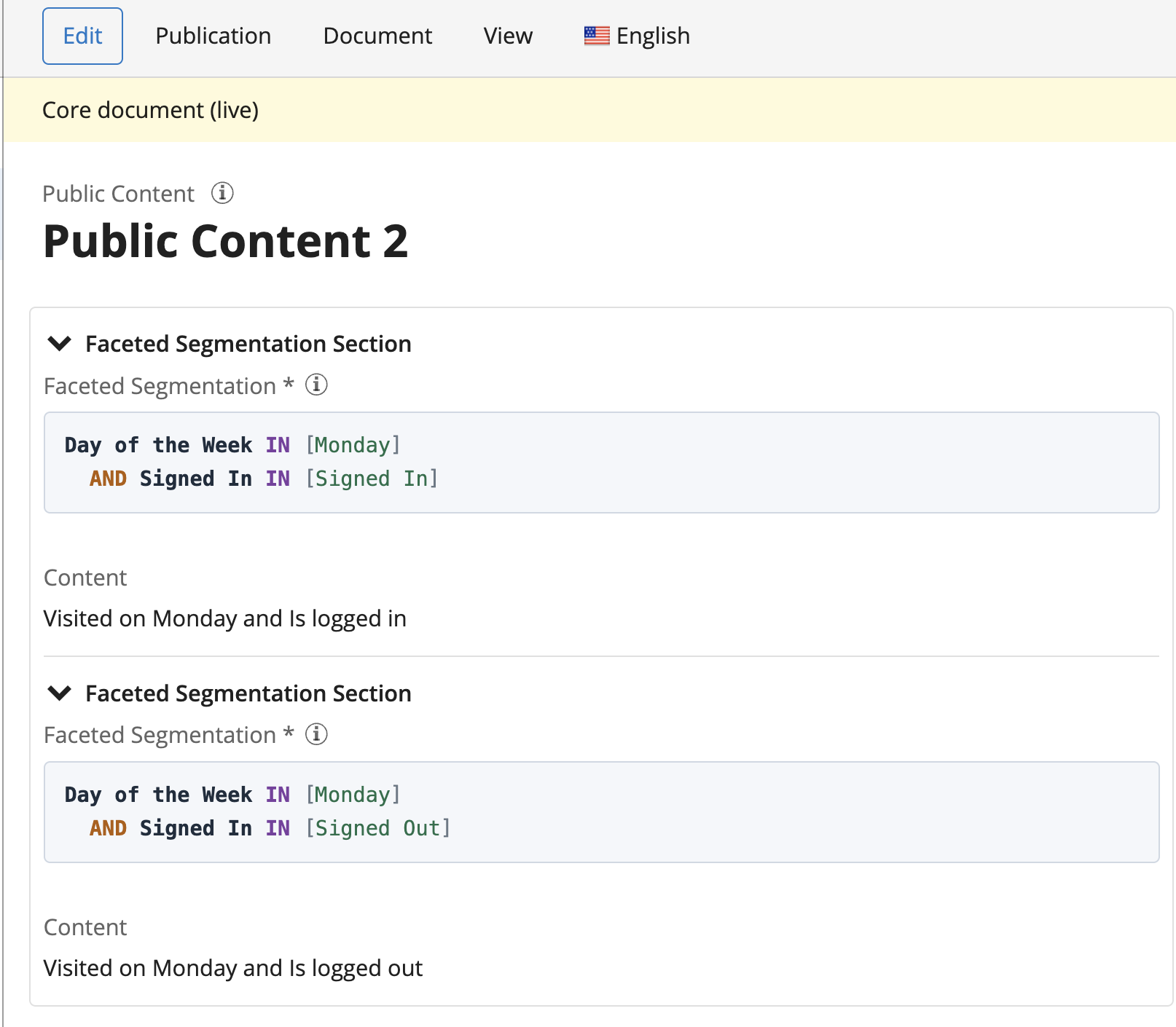
A segmented document has public content and a list of sections. Each section has its own content and a Faceted Segmentation field holding a rule. The rule decides which visitors see that section.
You build the rule in a builder, by picking facets and values. You don't type it. The field then shows the rule as plain text, so you can read who a section is for without opening anything.
Facets and values
A facet is something the site knows about a visitor, such as their loyalty level or whether they're signed in. Each facet has a fixed list of values, such as Gold Member and Platinum Member.
Facets are value lists. Your developers or administrators decide which ones exist, and their values are maintained like any other value list. If a facet or value you need is missing, ask whoever manages your value lists to add it.
Conditions
A rule is made of conditions. A condition names one facet and one or more of its values:
| Condition | Matches a visitor who |
|---|---|
Loyalty IN [Gold Member] |
is a gold member. |
Loyalty IN [Gold Member, Platinum Member] |
is a gold member or a platinum member. |
Loyalty NOT IN [Gold Member] |
has a loyalty level, and it isn't gold. |
IN means “is one of these”. NOT IN means “is none of these”.
AND, OR and NOT
To combine conditions:
| Word | Meaning | Example |
|---|---|---|
| AND | Every condition must match. | Signed In IN [Signed In] AND Loyalty IN [Gold Member]: signed-in gold members. |
| OR | At least one condition must match. | Loyalty IN [Gold Member] OR Day of the Week IN [Saturday, Sunday]: gold members, and everyone at weekends. |
| NOT | Turns a group around: it matches whoever the group doesn't. | NOT (Size IN [Small] AND Day of the Week IN [Monday]): everyone except small visitors on Mondays. |
When a rule mixes AND and OR, AND is applied first. Use a group, shown in brackets, when you mean something else:
Signed In IN [Signed In]
  AND (
    Loyalty IN [Gold Member, Platinum Member]
      OR Day of the Week IN [Saturday, Sunday]
  )
This reads: “signed in, and either a gold or platinum member, or visiting at a weekend”. Without the brackets, it would read: “signed-in gold or platinum members, or anyone at a weekend”.
Open the builder
- Open the document for editing.
- Find the section, or add one with the section field's add button.
- Under its Faceted Segmentation field, click Modify Segmentation Rules.
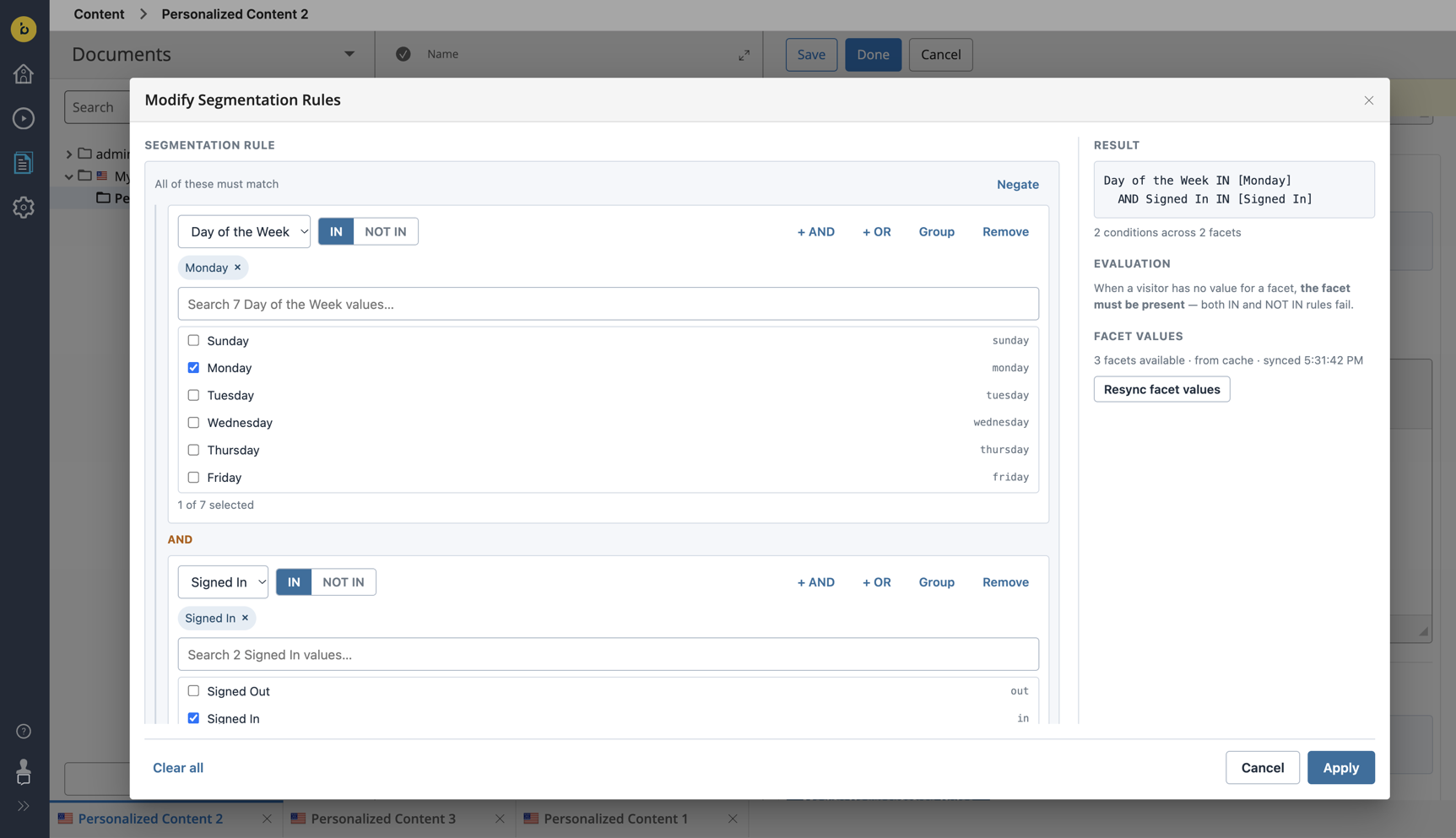
The builder opens in a dialog. The rule is on the left. On the right, Result shows the rule as it will be stored, and updates as you work.
Build the rule
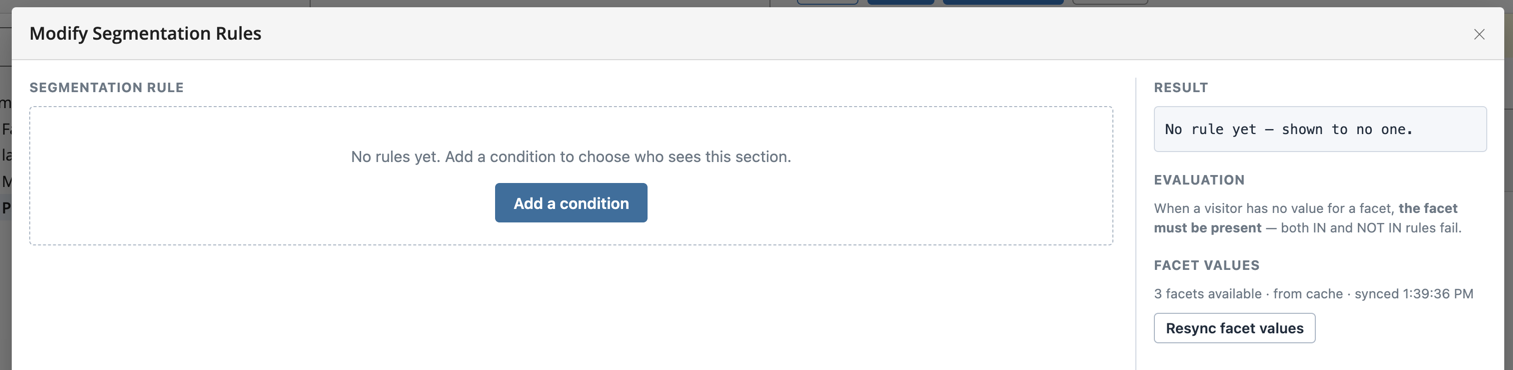
Add the first condition. In a new section the builder is empty. Click Add a condition.
Choose the facet and the operator. Pick the facet from the dropdown, then click IN or NOT IN.
Choose the values. Tick the values in the list. Use the search box to filter a long list. The key shown in grey next to a value is the value's id, and you can search on it too. Selected values appear as tags above the search box. Click × on a tag to remove it.
If you select more than half of a facet's values, the builder suggests switching to NOT IN.
Size NOT IN [Small] is shorter than Size IN [Medium, Large, Extra Large]. Check with your
developers before you do this. Depending on how the site is set up, the two can treat visitors
with no size differently. See Visitors with no value.
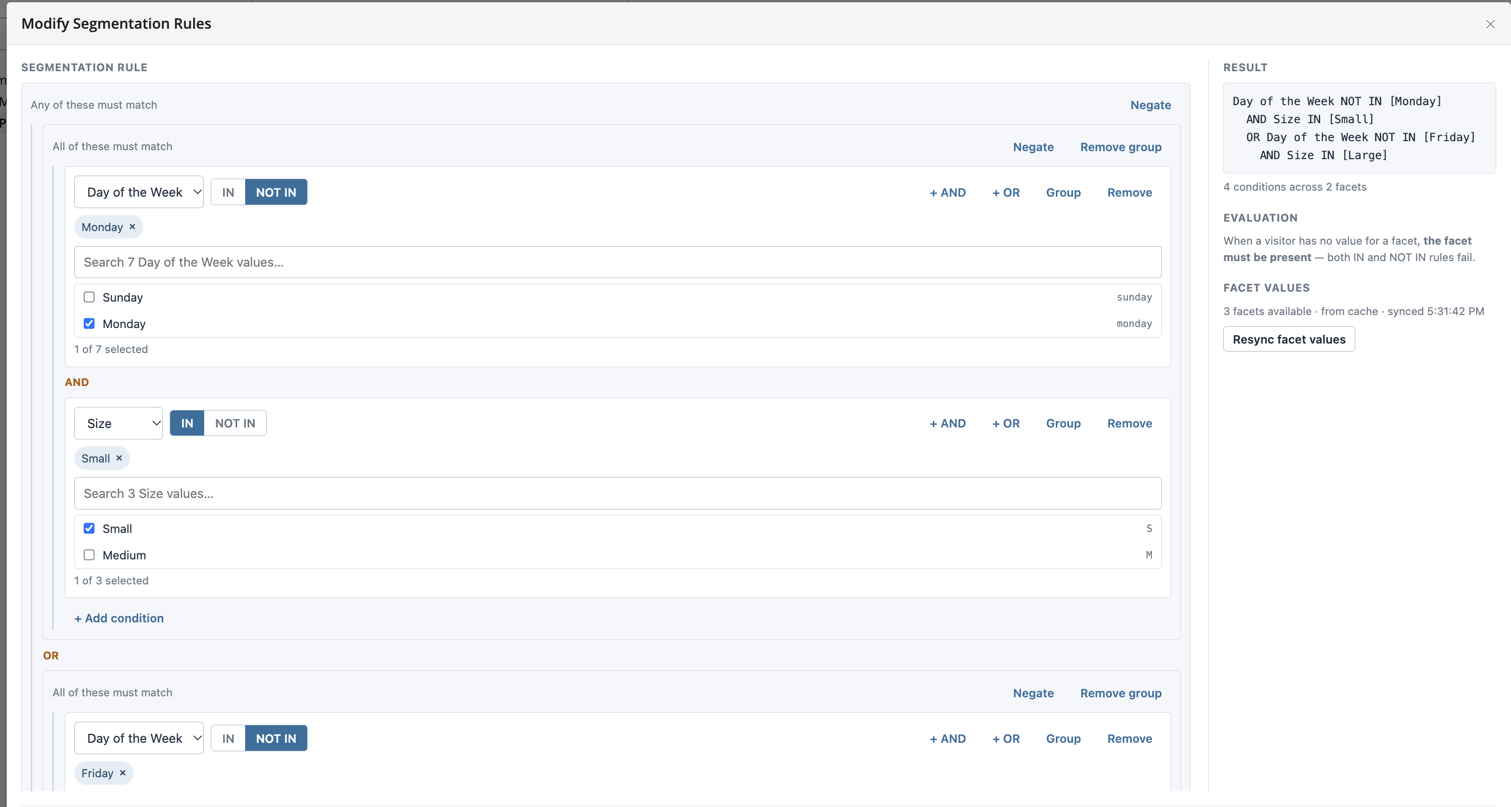
Add more conditions. When two or more conditions are joined, the builder draws a box around them, headed All of these must match (AND) or Any of these must match (OR).
| Button | On | What it does |
|---|---|---|
| + AND | A condition | Adds a condition that must match as well. |
| + OR | A condition | Adds a condition that can match instead. |
| Group | A condition | Puts it in a group of its own, with a new condition joined by AND. Use it for the bracketed part of a rule. |
| Remove | A condition | Removes it. |
| + Add condition or + Add alternative | A box | Adds one more condition to the box. |
| Negate / Un-negate | A box | Puts NOT in front of the whole box, or takes it off. |
| Remove group | A box | Removes the box and everything in it. |
Within one box, each facet can be used only once. Pick more values in the existing condition instead. The same facet can appear again inside a nested group.
Apply. Click Apply to put the rule in the field, then save the document as usual. Cancel closes the builder without changing anything. Clear all removes every condition, after asking you to confirm.
A condition with no values selected is dropped when you apply. The builder warns you about it first.
Visitors with no value
Sometimes the site has no value for a facet. A visitor who hasn't signed in may have no loyalty level at all. How a condition treats that visitor depends on a site-wide setting, and the builder shows which one applies under Evaluation:
| Evaluation says | IN condition |
NOT IN condition |
|---|---|---|
| the facet must be present | doesn't match | doesn't match |
| exclusions still apply | doesn't match | matches |
So under the facet must be present, Loyalty NOT IN [Gold Member] reaches members whose level
isn't gold, but not visitors with no level. Under exclusions still apply, it reaches both.
When values change
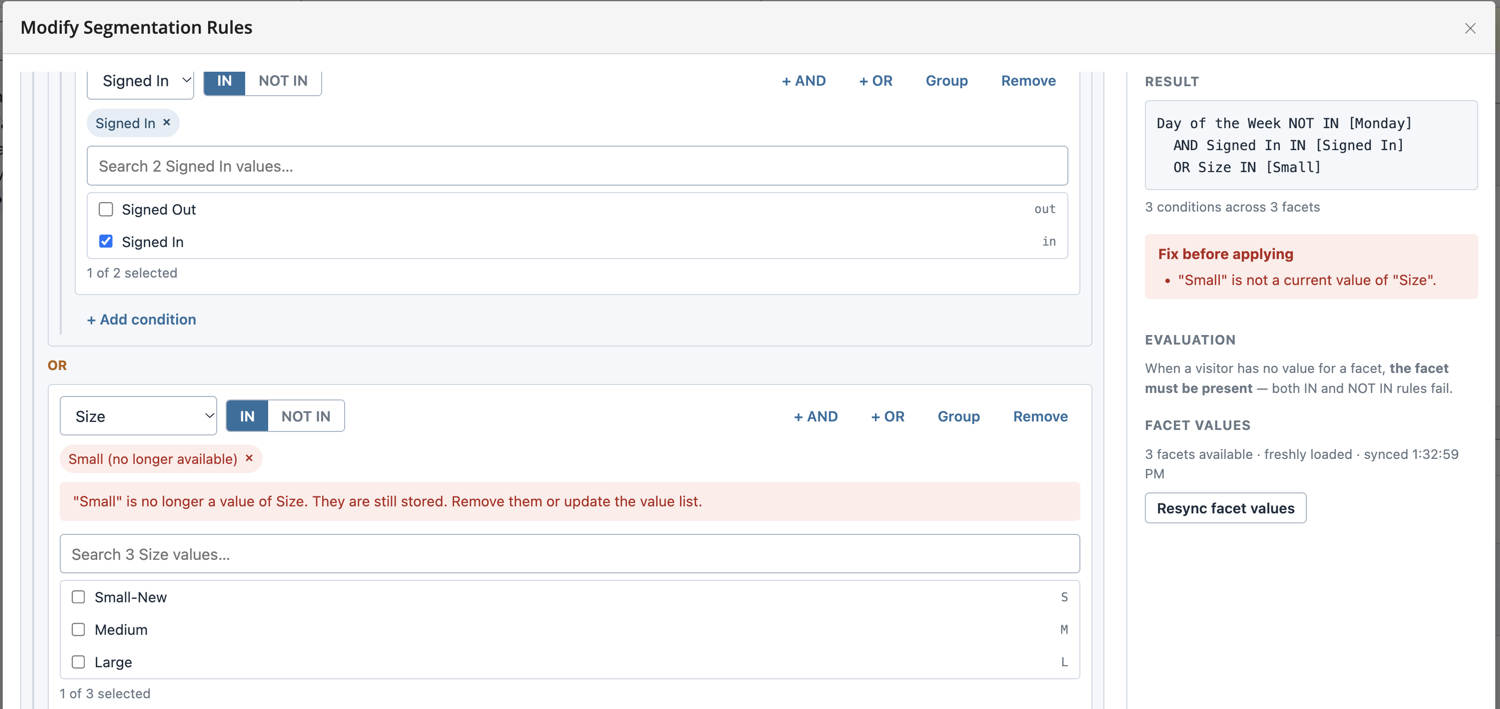
If a value list changes while you work, click Resync facet values in the builder to load the latest facets and values.
If a value is renamed or removed after a rule uses it, the rule keeps the old value. The field shows an error and marks the value in red:
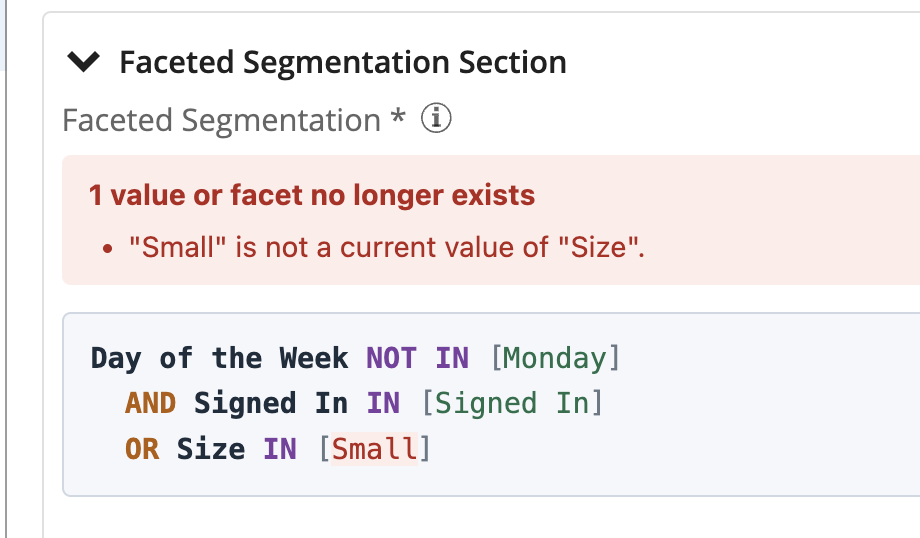
In the builder, the value is marked (no longer available) and listed under Fix before applying. You can't apply the rule until you remove the old value or pick another. Nothing is dropped without you seeing it, because dropping a value silently could show a section to people it wasn't meant for.
Every section needs a rule
The document can't be saved while a section's rule is empty. To show content to everyone, put it in the document's public content instead of a section.
Whether a matching section actually appears also depends on how the page is set up. Often only the first matching section is shown, so the order of the sections matters. Ask your developers which way your pages are set up.
To check what a visitor will see, use Previewing Segments.